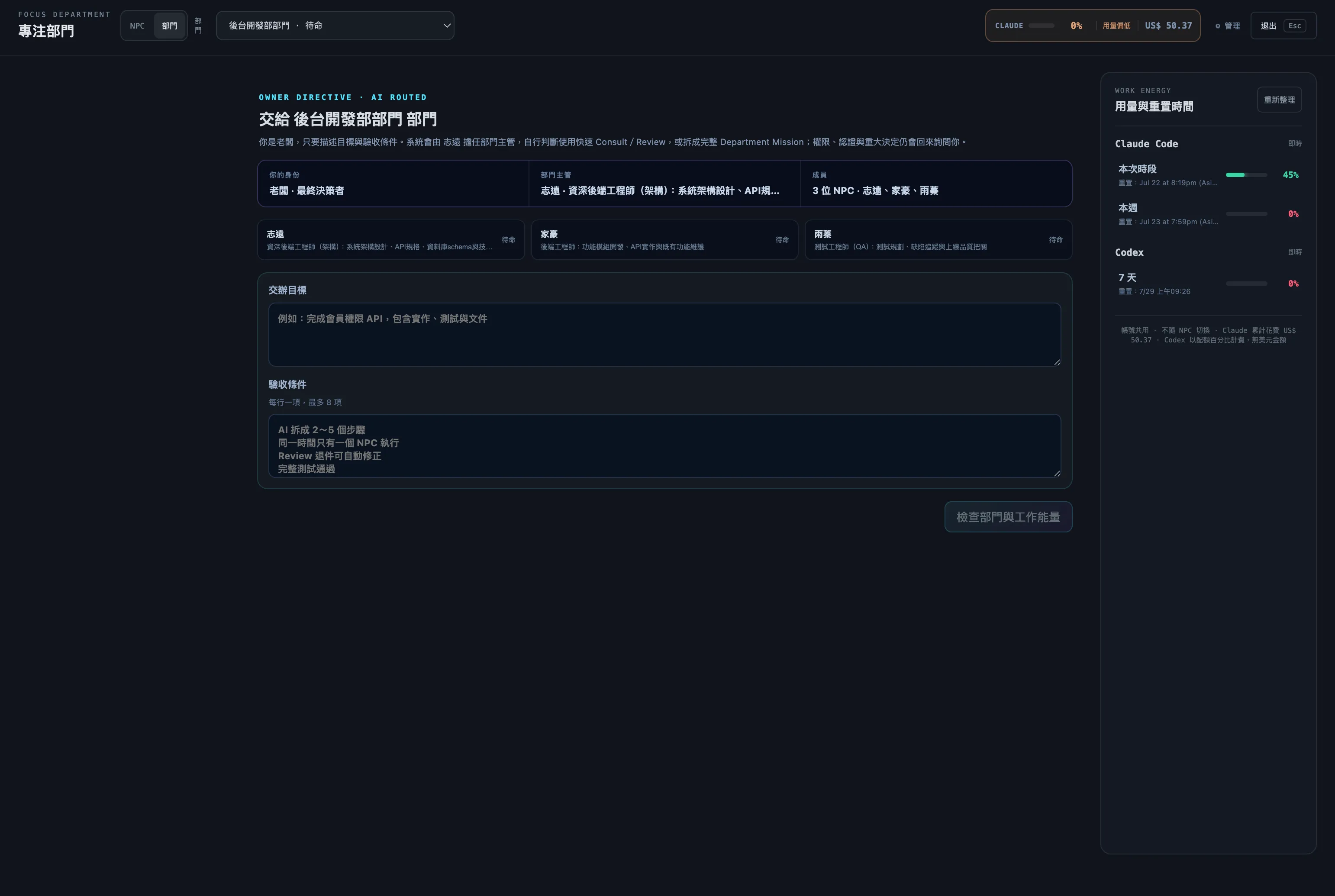
Hand the work to a department, and let the lead decide.
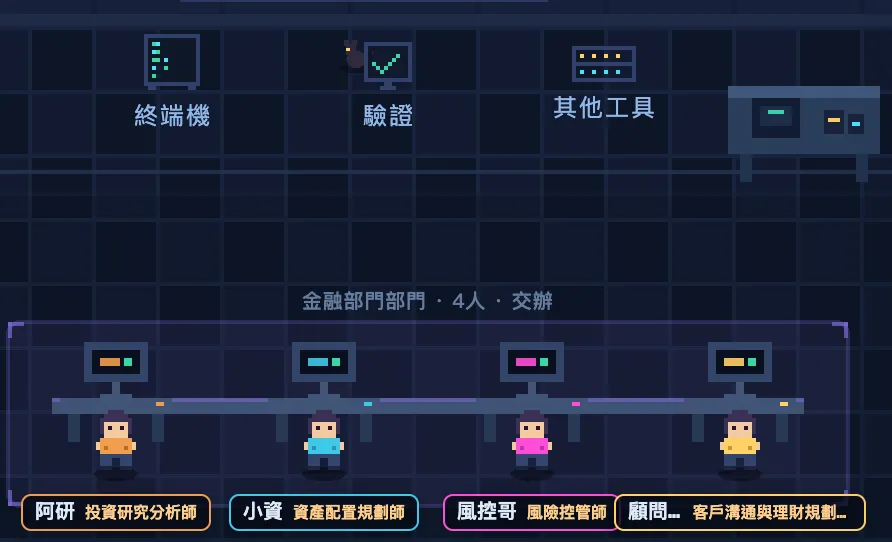
A department is two or more NPCs sharing one workspace, one of them designated the lead. Create one directly with the Department Creator: fill in a purpose, headcount, and provider, and AI drafts complementary roles and personas — you just pick who leads. From then on, every time you hand off work you only write a goal and acceptance criteria; the lead decides whether to consult an expert, ask for a review, or run a full task chain.
- AI-planned departments: fill in purpose, headcount, and provider; AI drafts complementary roles and you pick a lead
- Quick Consult / Quick Review: two-step, read-only collaboration — an expert advises or reviews, the lead executes and finalizes
- Department Mission: a 2–5 step task chain that always starts with execute, with a different NPC doing each review step; failed reviews get up to two automatic correction rounds
- Only five things stop for you: plan approval, an inconclusive review, a used-up correction budget, a failed step, or a member going offline — everything else hands off automatically
- No mode ever auto-commits, pushes, merges, tags, or releases, and none of them touch your authentication
Expert advises → lead executes (2 steps, read-only)
Expert reviews → lead finalizes (2 steps, read-only)
2–5 step chain, execute/review alternating owners
Same crew, all the way down to a real terminal.
Pixel is the default pixel-office view. Switch from the top bar into the full-screen Professional workbench, or open Black Window directly — it runs a real Claude Code or Codex CLI session, not a simulation. All three modes share the same accounts, models, and safety confirmations, so whichever view you act from, the others are looking at the same real state.
- Persistent sessions: the daemon keeps the real terminal identity — surviving navigation, reloads, and even switching browser tabs
- Per-pane controls: each Agent pane can select Claude or Codex, a shared or named account, its model, and auto-approve mode
- Freely arranged panes: organize multiple terminals in workspace tabs — drag, resize, split, minimize, maximize
- Studio rail: Alt+1–9 switches local workspaces, with a read-only branch, commit, dirty-file, and ahead/behind summary
- Terminal font size is adjustable and saved; local voice input becomes editable text first and never sends or executes automatically
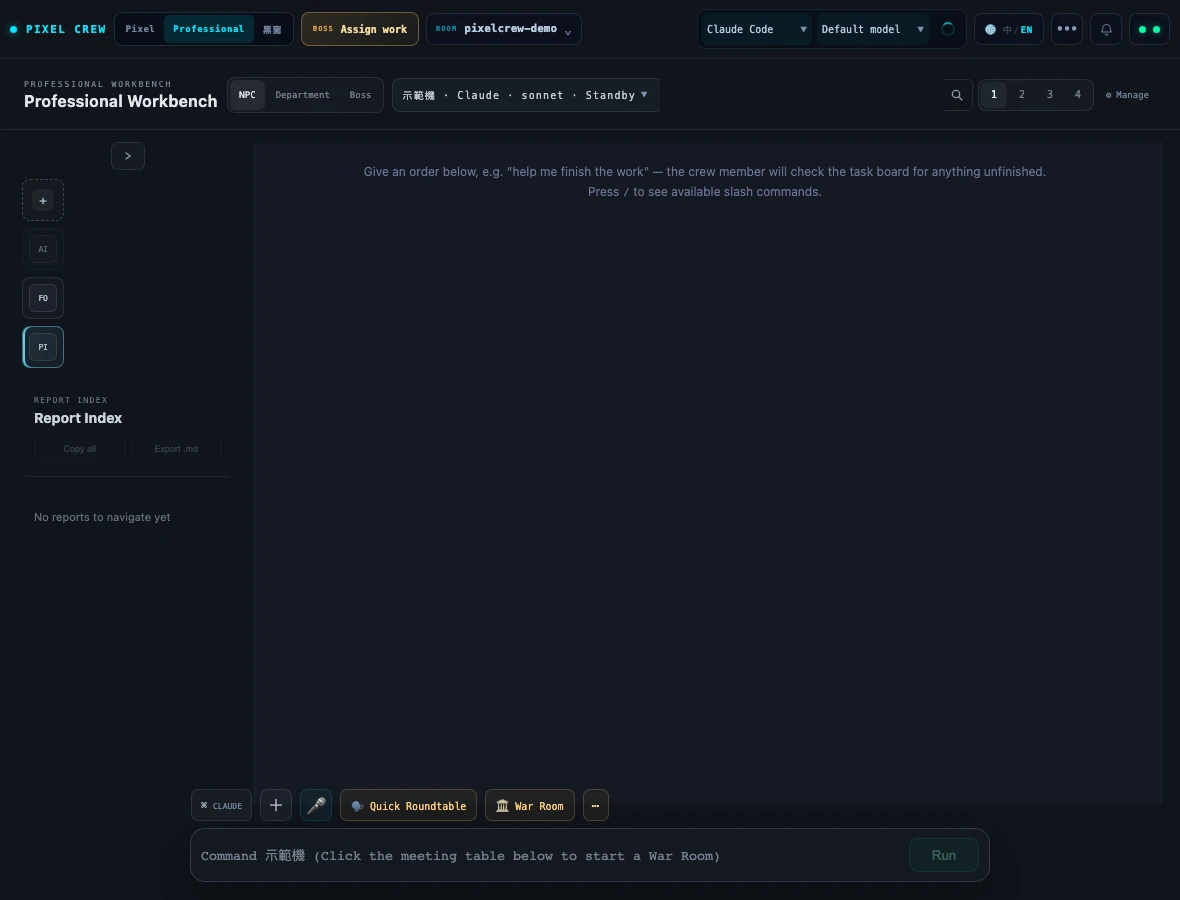
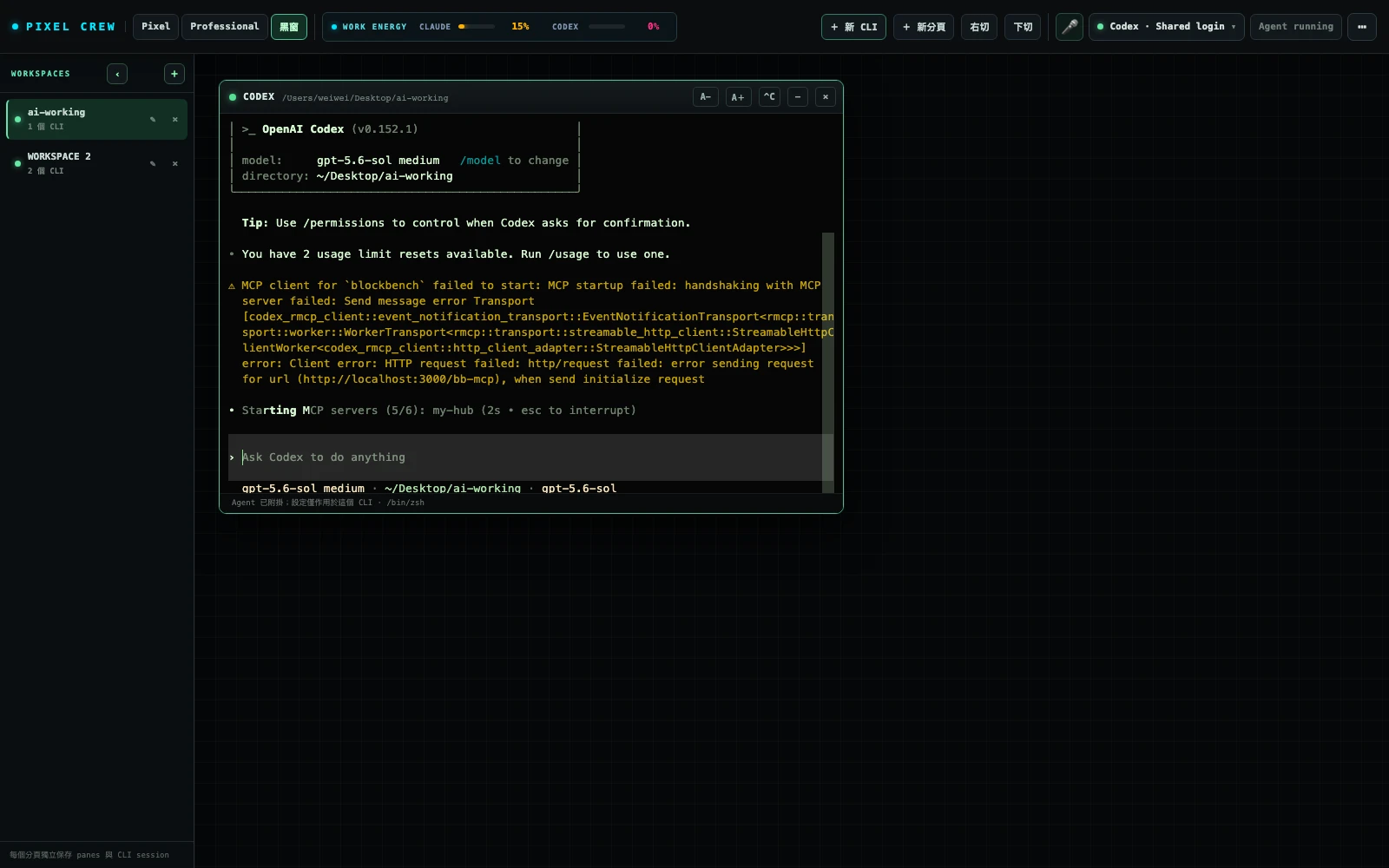
▲ Captured from the real app — the NPC and workspace shown are a demo setup for this screenshot.

Assign it, then watch it go to work.
Type a task and the NPC walks to the matching workstation — to read files, write code, search the web, or use the terminal. Its nameplate shows elapsed time while a speech bubble streams live output.
- Workstation = tool: where the character stands shows what the agent is using
- Completion reactions: nearby teammates celebrate success; failures produce a small storm cloud
- This is an unedited recording of a real task
See who needs you, at a glance.
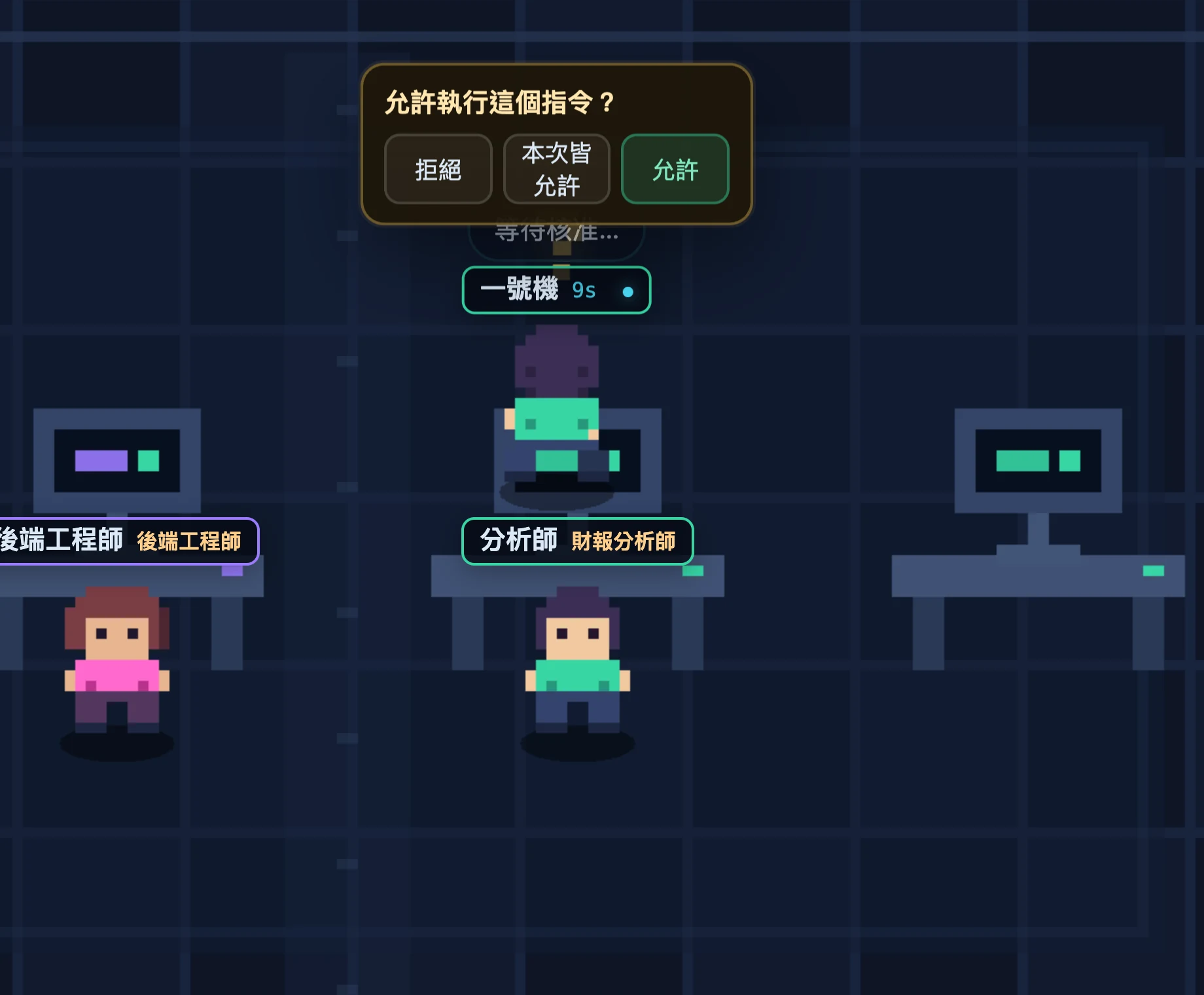
When an agent wants to run a command, its NPC stops, paces with a question mark overhead, and the approval controls float right beside the character. No window switching, no digging through logs — one glance across the office tells you who's stuck.
- Three choices: deny, allow for this task, or allow once
- Three auto-approval levels: off, safe (a read-only allowlist), or full (dangerous commands still force a confirmation)
- Each NPC has independent settings
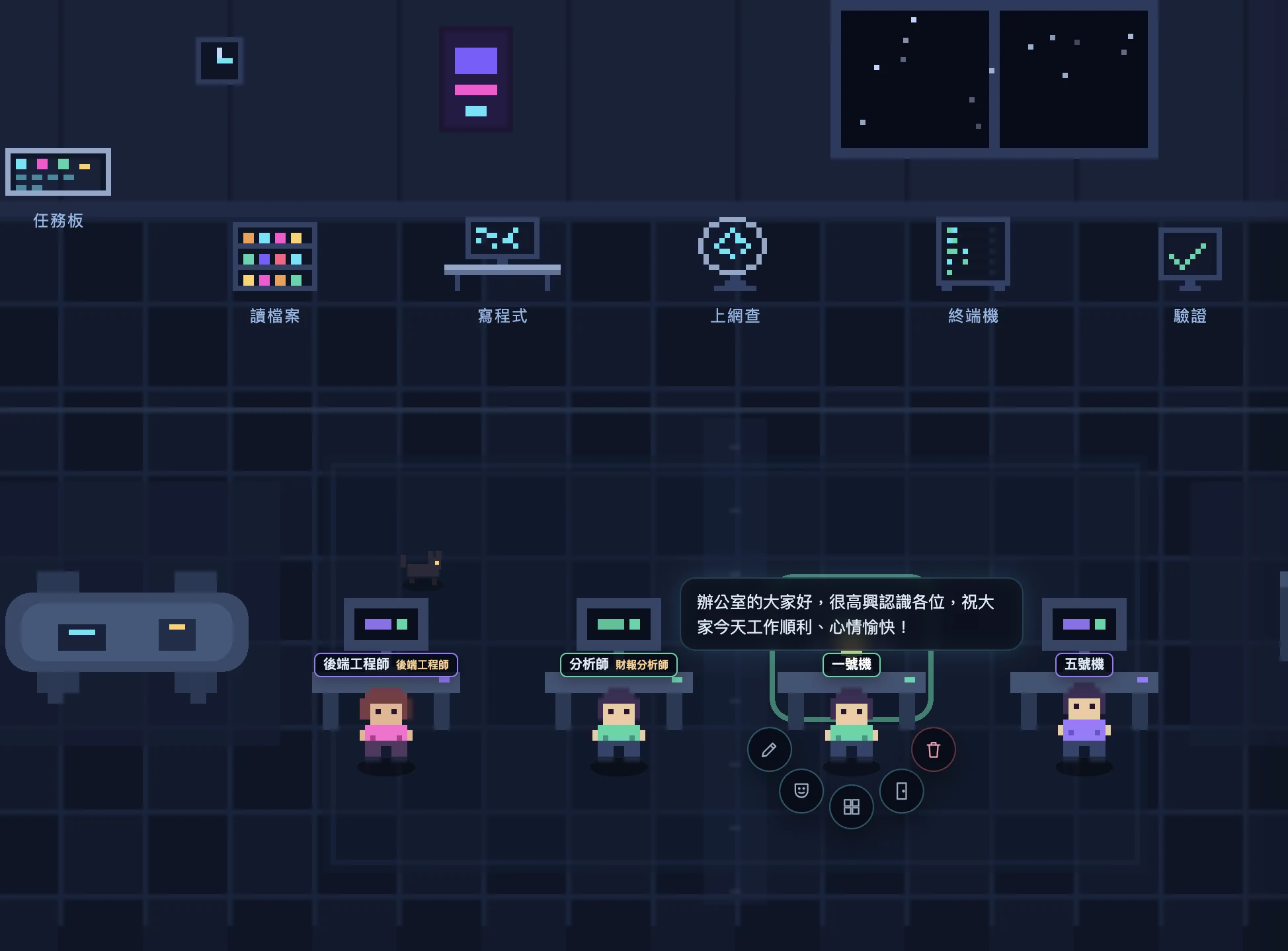
One right-click, every setting for this character.
Right-click any NPC to rename it, edit its persona, change its look, switch rooms, or safely remove it — and to ask another NPC at the same workstation for a read-only Consult or Review. For a bigger job, just create a department.
- Persistent personas: give an NPC a durable role ("You're a frontend QA — only raise issues, never touch code") injected through each CLI's native mechanism; it survives restarts
- Pixel Workshop: switch looks or upload your own animated GIF avatar
- Cross-LLM handoff: let Claude summarize its progress partway through and hand off to Codex (or the other way around)

Your office, your point of view.
Drag empty space to pan, use the wheel or the lower-left slider to zoom — always in crisp integer steps. Double-click the floor or press ⟳ to reset to the default framing.
- Zoom in to follow one NPC, or pull out to see the whole office
- Nameplates, bubbles, and approval controls move with the camera
- Tablet-friendly: one-finger pan plus a slider for zoom
Every step, out in the open.
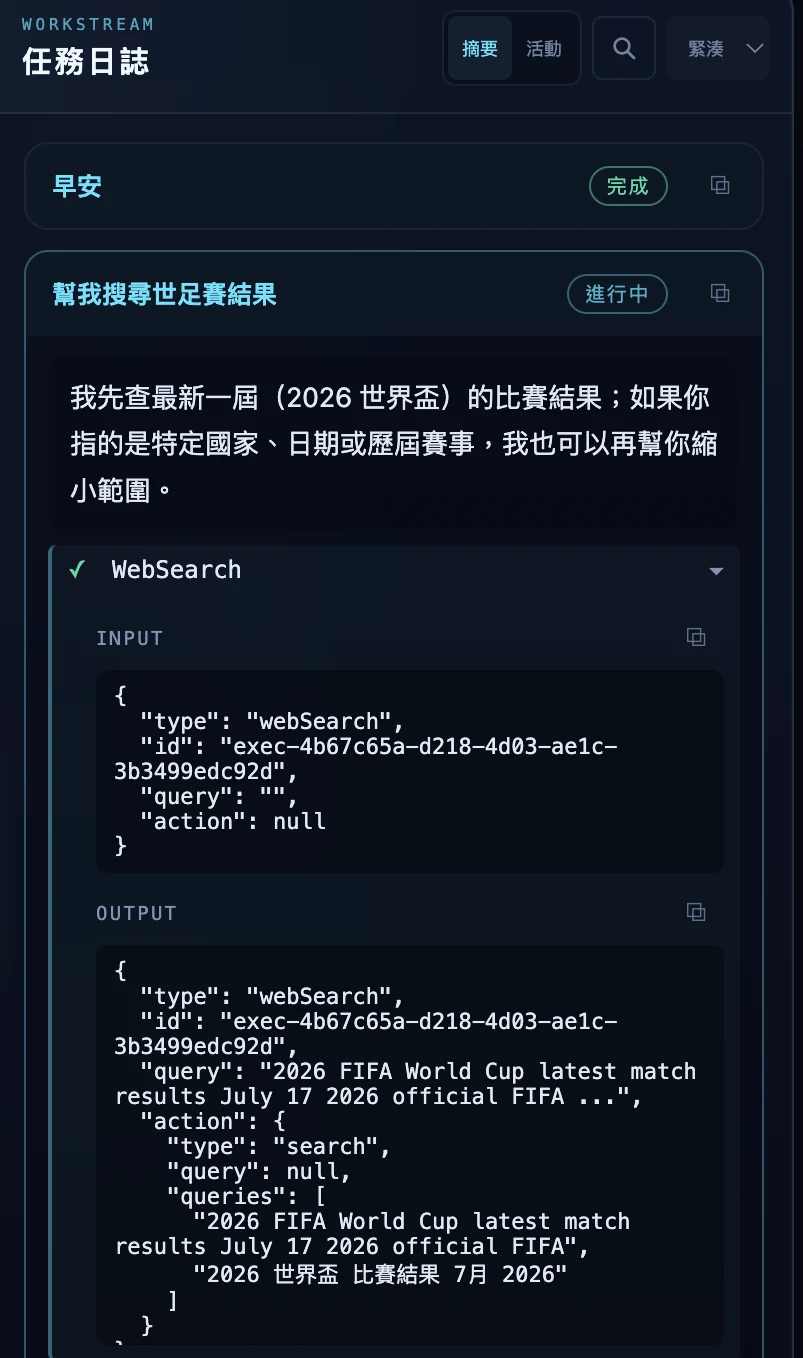
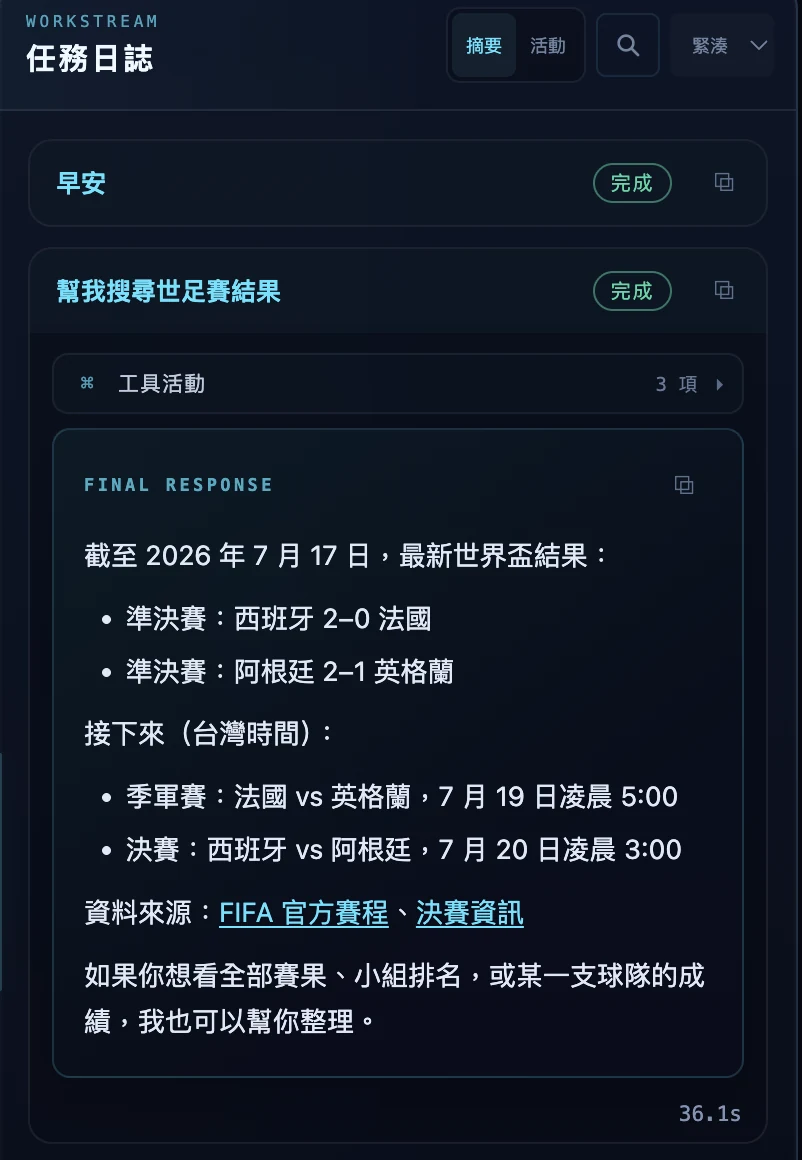
The left panel shows a task in progress: the agent explains what it's about to look up while a WebSearch tool's input and output stream in live. The right panel shows the finished result: the final reply rendered as full Markdown — lists, links, sources — plus the tool-call count and total duration.
- Two views: summary mode for the conclusion, activity mode for every tool call
- Searchable: full-text search across this NPC's task history; one-click copy for code blocks
- Desktop notifications: get a system notification when a task finishes or needs approval while you're in another window (off by default)
Switch brains without dropping the work.
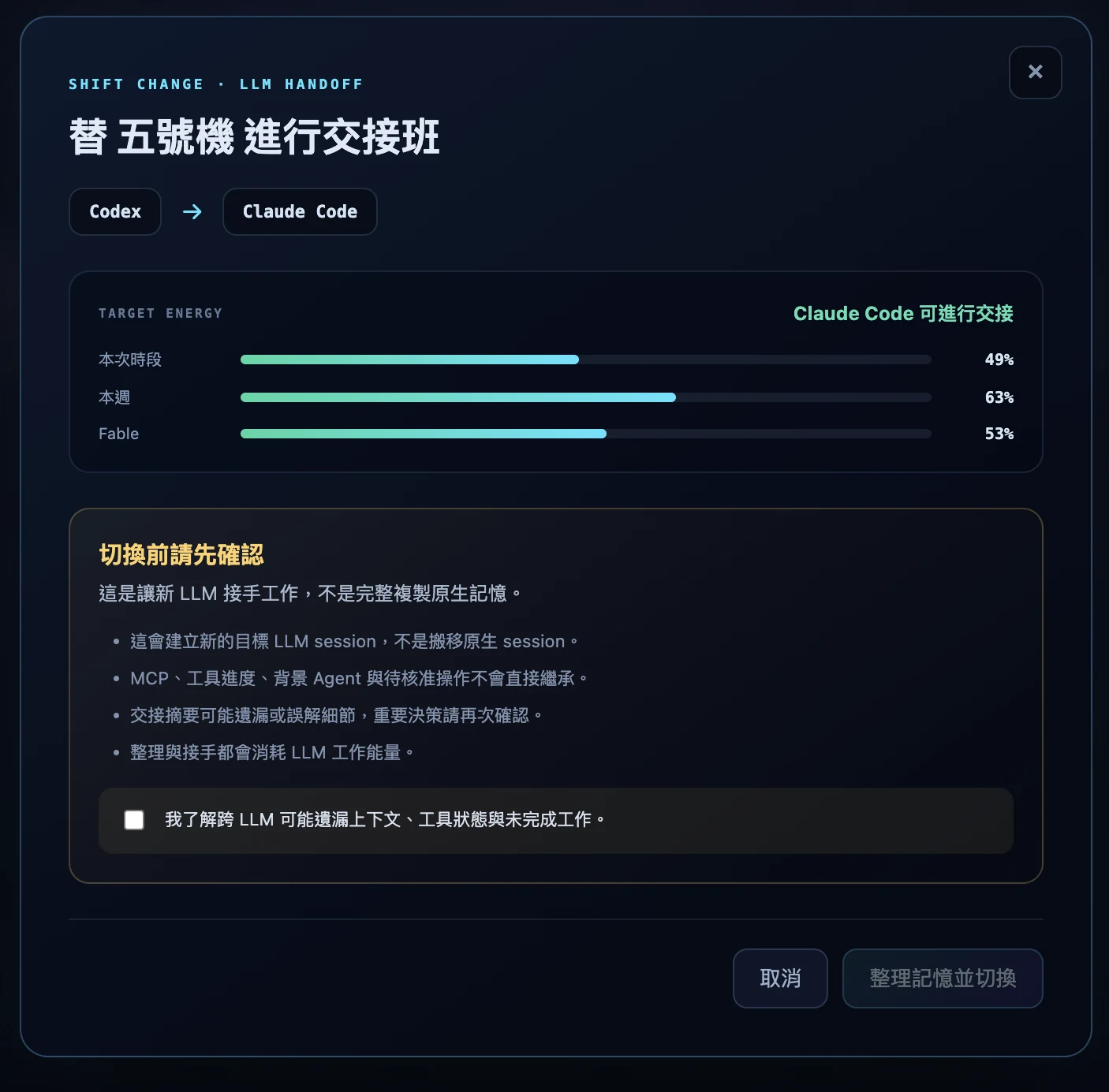
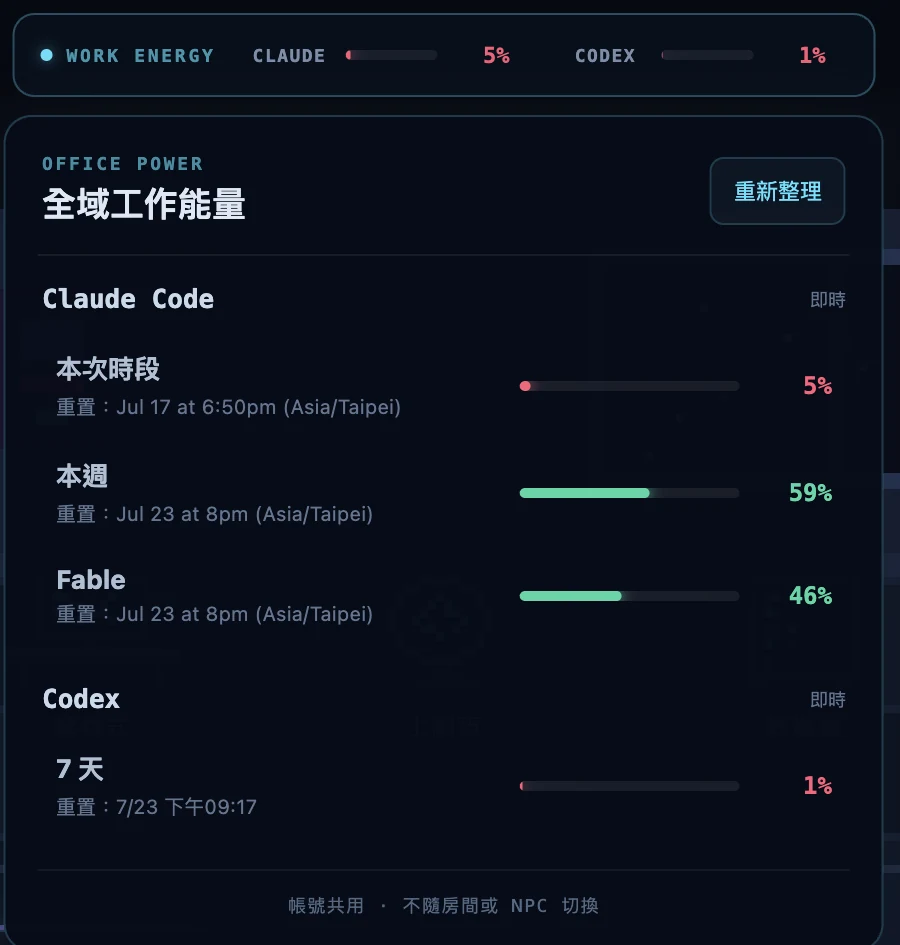
Running low on Codex allowance, or is this one better suited to Claude? Hand an NPC off between LLMs: the system first summarizes the current work, then hands it to a fresh session on the other model.
- Global work energy: the top bar always shows live usage for both CLIs; open it for session, weekly, and per-model reset times
- Check energy before switching: see the target LLM's live usage before handing off, so you don't run out right after switching
- Honest warnings: it lists exactly what won't carry over (tool state, pending approvals) and requires a confirmation checkbox before proceeding; works Claude ⇄ Codex in either direction
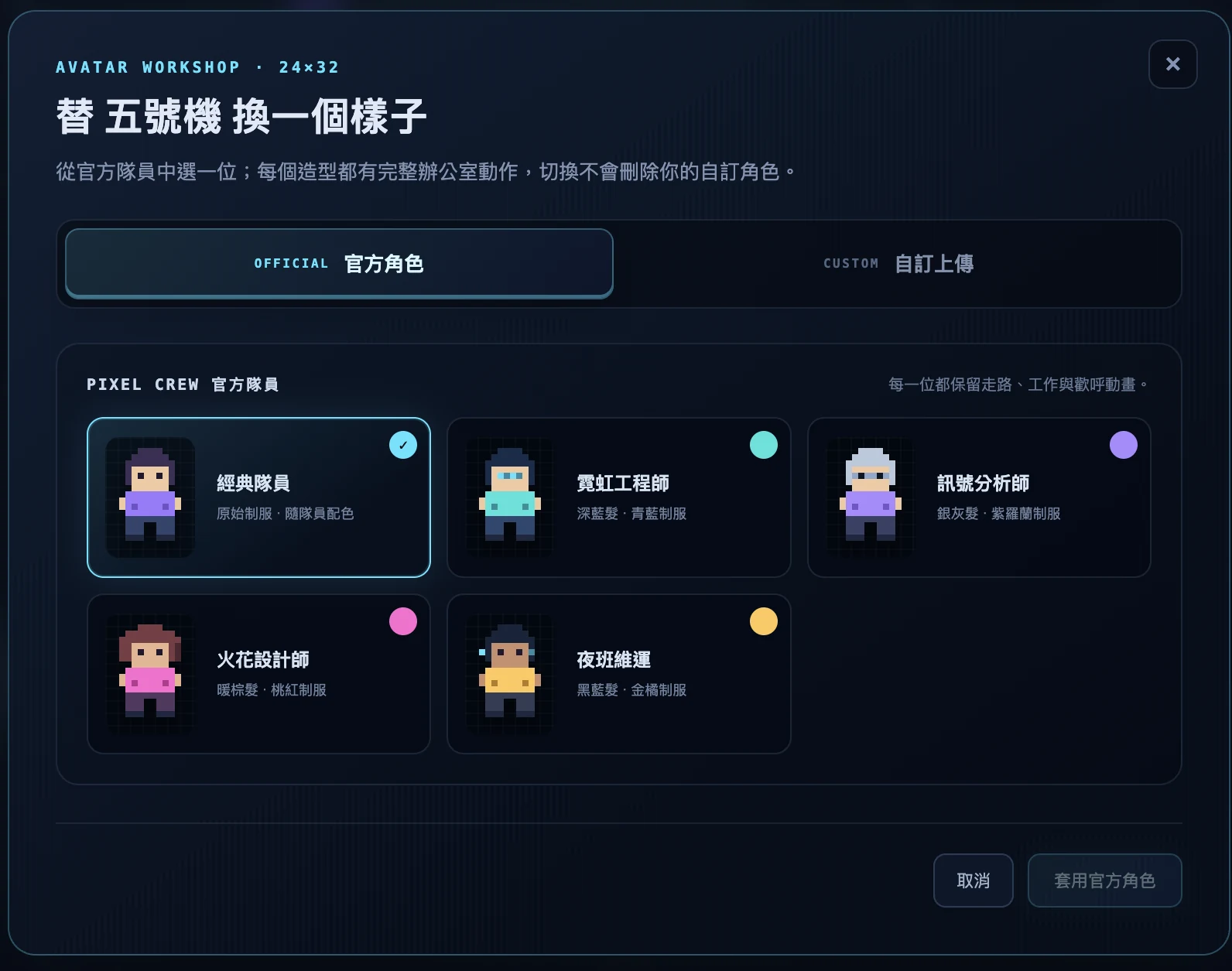
Make your crew look the way you want.
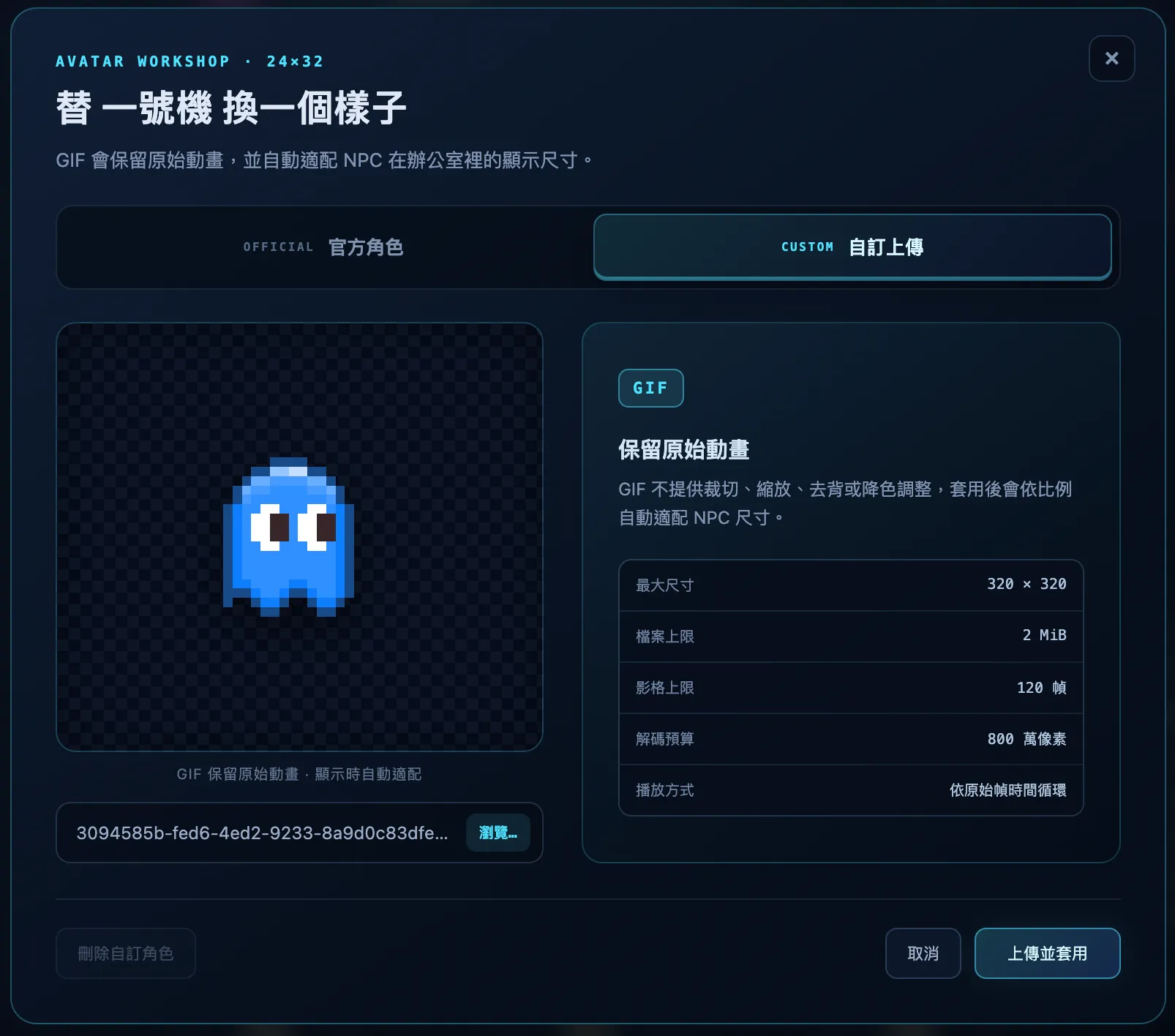
Swap between five official crew designs, or upload your own pixel GIF — animation timing is preserved and the avatar is automatically fitted to the NPC's size in the office, walking, working, and celebrating as usual.
- Animated GIF avatars: up to 320×320 and 120 frames, looping at their original frame timing
- Safe to switch: choosing an official look never deletes your custom character — switch back anytime
- Pair it with the persona system so your "financial analyst" actually looks like one